My first “real” video edit was a disaster. I’d spent three days filming a travel vlog in northern Pakistan — gorgeous shots, golden hour light, the works. Then I sat down to edit it in the first free software I could find and spent six hours just trying to figure out how to sync audio. The final video looked like it was edited on a Nokia phone.
That was the moment I realized the tool matters. A lot. Not because expensive software makes you a better editor, but because the wrong tool wastes your time, breaks your flow, and honestly just makes the whole thing feel miserable.
Since then I’ve edited everything from YouTube vlogs and wedding highlight reels to short documentary pieces and Instagram Reels. I’ve bounced between tools, cursed at a few, and genuinely fallen in love with a couple. Here’s what I actually think.
“The best editing software isn’t the most powerful one — it’s the one you’ll actually finish a project in.”
Who needs what — a quick map
Before diving in, let me save you from the biggest mistake I see people make: downloading a professional-grade tool when they just want to edit Instagram videos, or downloading a beginner app when they’re trying to grade cinema-quality footage.
Beginners / Mobile
CapCut
iMovie
Clipchamp
Enthusiasts / YouTubers
DaVinci Resolve
Vegas Pro
Filmora
Professional / Studio
Premiere Pro
Final Cut Pro
Avid Media Composer
Color Grading Focus
DaVinci Resolve
Baselight
Resolve Studio
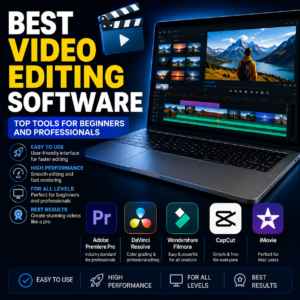
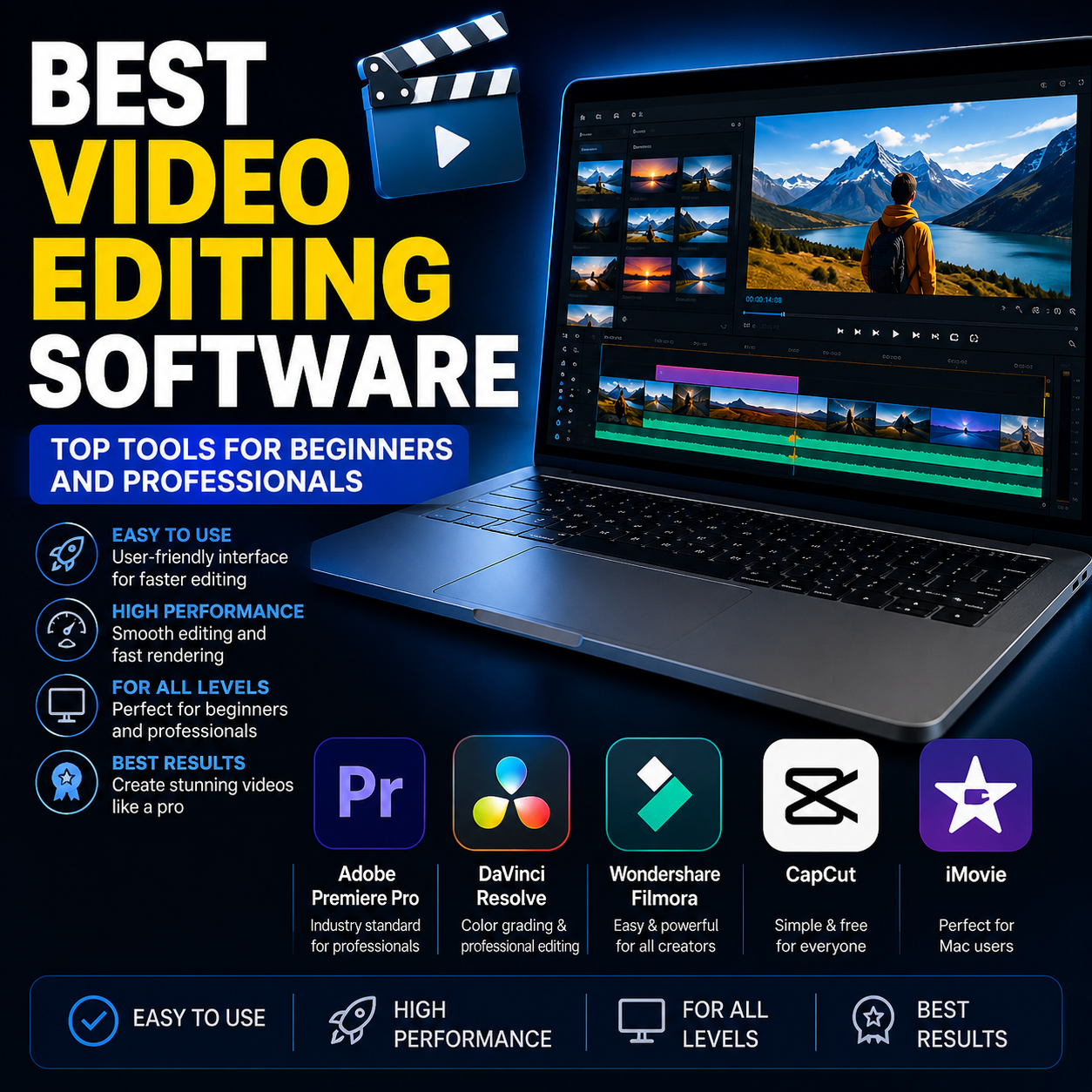
The software worth your time
1. Adobe Premiere ProIndustry standard
If you’re going to work with any production house, agency, or media company, there’s a good chance they’re using Premiere. I learned this the hard way when a client asked me to send over my Premiere project file and I’d edited the whole thing in a different app. Awkward.
Premiere’s real strength is its integration with the Adobe ecosystem. Jumping between Premiere, After Effects for motion graphics, and Audition for audio cleanup is genuinely seamless. The new AI tools — auto-reframe, speech-to-text captions, generative B-roll — have become legitimately useful in 2025-2026, not just gimmicks.
The catch? It’s subscription-only at around $55/month for the full Creative Cloud. And it can be a RAM hog — my 16GB machine struggles with 4K multicam timelines.
Strengths
- Industry-standard, universal compatibility
- Deep Adobe ecosystem integration
- Excellent AI-assisted tools
- Massive plugin library
Limitations
- Expensive subscription ($55+/mo)
- Heavy on RAM and GPU
- Steep initial learning curve
$55/mo (Creative Cloud)or ~$22/mo Premiere-only plan
2. DaVinci ResolveBest free professional tool
Honestly, DaVinci Resolve might be the most insane value proposition in creative software. The free version is genuinely professional-grade. Colorists working on actual Netflix productions use Resolve. And the free version gives you that same color science.
I switched to Resolve for a documentary project last year specifically for the color grading node system, and it changed how I think about color entirely. The node-based workflow feels complex at first — it’s not like layers in Premiere — but once it clicks, you never want to go back.
The editing interface (the Cut and Edit pages) took me about two weeks to feel comfortable in. The Fusion page for VFX is deep enough to replace After Effects for most things. And the Fairlight page for audio is legitimately pro-level.
Strengths
- Free version is genuinely powerful
- Best-in-class color grading tools
- All-in-one: edit, color, audio, VFX
- No subscription required
Limitations
- Steep learning curve for beginners
- Needs a strong GPU to run smoothly
- Some features locked to Studio ($295)
FreeStudio: $295 one-timeNo subscription
3. Final Cut ProBest for Mac users
If you’re on a Mac and you edit video seriously, Final Cut Pro is almost impossible to ignore. Apple has spent years optimizing it specifically for Apple Silicon, and the performance difference is real — I watched a friend edit 8K ProRes footage on his M3 MacBook Pro in real time without proxies. That’s not something you do in Premiere without a $3,000 workstation.
The magnetic timeline takes about a week to stop fighting and about a month to start loving. It’s genuinely different from track-based editors, but once it’s in your muscle memory, it’s incredibly fast for assembly edits and rough cuts.
The one-time $299 purchase (no subscription) is a genuine bargain compared to Adobe’s model. The downside is it’s Mac-only, and sharing projects with Windows-based collaborators gets complicated.
Strengths
- Blazing fast on Apple Silicon
- One-time purchase, no subscription
- Intuitive magnetic timeline
- Excellent multicam support
Limitations
- Mac-only — full stop
- Limited collaboration / file sharing
- Magnetic timeline confuses newcomers
$299 one-timeMac only — 90-day free trial
4. CapCutBest for short-form / mobile
I’ll be straight with you — I used to dismiss CapCut as a TikTok app for teenagers. Then I watched a professional content creator churn out three polished Instagram Reels in the time it took me to open Premiere. Now I use CapCut for anything under 90 seconds.
The AI features are genuinely impressive: auto-captions that are actually accurate, AI-generated b-roll, background removal that doesn’t look terrible, and auto-sync that matches cuts to music beats. For social content, nothing comes close at this price point (free).
The desktop version has matured a lot in 2025 — it’s not just a mobile port anymore. If you’re making content for TikTok, Reels, or YouTube Shorts, stop overthinking it and just use CapCut.
Strengths
- Completely free (with watermark-free export)
- Excellent AI tools for social content
- Huge template library
- Works great on mobile and desktop
Limitations
- Not suited for long-form projects
- Limited color grading controls
- Data privacy concerns for some users
FreePro: ~$10/mofor extra templates and AI credits
5. Vegas ProBest Windows alternative
Vegas Pro has been around forever and still gets overlooked. For Windows users who want a professional tool without Final Cut’s Mac exclusivity or Premiere’s subscription model, Vegas is a solid option. The timeline is intuitive, it handles long-form content well, and the audio editing tools are excellent — it has roots in audio production.
I used Vegas for a 45-minute documentary edit a few years back and genuinely enjoyed the experience. It’s not as flashy as Premiere or as powerful as Resolve for color, but it’s stable, fast, and doesn’t require a PhD to learn.
Strengths
- Windows-native, stable performance
- Great for long-form editing
- Strong audio tools built in
- One-time purchase option
Limitations
- Less popular = smaller community/tutorials
- Color tools weaker than Resolve
- Windows only
From $249 one-timeor subscription plans available
6. Clipchamp (free, browser-based) Best zero-barrier option
If you’re on Windows 11, you already have Clipchamp installed. It’s Microsoft’s browser-based editor, and while it’s not going to win any awards for power, it gets the job done for simple cuts, captions, and social exports without downloading anything or paying a cent. I’ve used it for quick client preview videos where I needed something done in 20 minutes flat.
Strengths
- Completely free, no install needed
- Integrated with Microsoft 365
- Clean simple interface
Limitations
- Very limited advanced features
- Export quality caps at 1080p on free
Freeincluded with Windows 11
Quick comparison
| Software | Platform | Free tier | Best for | Price |
|---|---|---|---|---|
| Premiere Pro | Win / Mac | No | Professional / agency work | $55/mo |
| DaVinci Resolve | Win / Mac / Linux | Yes | Color grading, pro editing | Free / $295 |
| Final Cut Pro | Mac only | Trial | Mac users, speed | $299 once |
| CapCut | Win / Mac / Mobile | Yes | Short-form, social content | Free / $10mo |
| Vegas Pro | Windows only | No | Windows pro alternative | $249+ |
| Clipchamp | Browser / Win | Yes | Quick simple edits | Free |
Mistakes I made (so you don’t have to)
Mistake #1 — Starting with the most advanced tool
I jumped into Premiere Pro as a complete beginner because I thought “pros use it, so it must be right.” I spent more time watching tutorials than editing. If I could go back, I’d start with DaVinci Resolve or CapCut, build editing instincts, then move up.
Mistake #2 — Ignoring proxy workflows
Editing 4K footage directly on a mid-range laptop is pain. Every single software supports proxy workflows — lower-res copies that edit smoothly, then relink to the original for export. I wasted months of sluggish editing before learning this exists. Set it up on day one.
Mistake #3 — Not organizing media before editing
Dumping all footage into one folder and starting to cut immediately feels fast. Then three days later you can’t find a clip, your project file breaks because you moved things around, and you’re restarting from scratch. Spend 20 minutes on folder structure before you touch the timeline. Always.
Mistake #4 — Switching tools mid-project
I started a client project in Premiere, got frustrated halfway through, and tried to move everything to Resolve. The export/import process was a nightmare and I lost a day of work. Pick your tool, commit for the project, switch after you’re done.
How to choose the right software — step by step
- Define what you’re making: short social clips, YouTube videos, documentaries, wedding films?
- Check your machine specs — if you have under 16GB RAM, rule out heavy tools for 4K work without proxies
- Decide on budget: free-only, one-time purchase, or subscription?
- Pick from the tier grid above based on your answers
- Download and run through one real project — not a tutorial, an actual video you need to make
- If you hit a wall, check YouTube for the specific error or workflow before switching tools
- Stick with your choice for at least 30 days before deciding it’s wrong for you
Pro tip
Before any paid purchase, look for bundle deals. DaVinci Resolve Studio often shows up in Humble Bundle software deals for a fraction of the retail price. Vegas Pro goes on sale constantly. Adobe occasionally runs 40% off first-year promotions for students and new subscribers.
What about AI-powered editors?
Tools like Descript, Runway, and Adobe’s Firefly-powered features inside Premiere are genuinely changing parts of the workflow in 2026. Descript in particular is wild for interview-style videos — you edit the transcript and the video cuts itself. I used it for a podcast video series and it saved probably 4 hours of assembly editing per episode.
That said, AI tools are best as a layer on top of a real editing workflow, not a replacement for it. They handle the tedious parts (removing filler words, auto-captioning, rough assembly). The actual storytelling, pacing, and creative choices still need a human eye.
After all the tools I’ve worked with, my personal setup right now is this: CapCut for anything going to social media, DaVinci Resolve for anything that needs serious color work or long-form editing, and Premiere when a client specifically needs a Premiere project file.
The honest truth is that any of the major tools will get the job done if you put in the time to learn it. The difference between a good video and a bad one is almost never the software. It’s the storytelling, the pacing, and the attention to sound — things that don’t show up in a feature comparison table.
Pick one, commit to it, and go make something.